


Wireless alarm reliability depends on design, signal strength, power and support. See what a professional installation checks before an alarm is needed.
How to Connect CCTV to Your Phone Securely

A security camera is most useful when you can see what is happening without being at the property. Whether you are checking the front door from work, reviewing activity at a rental flat or overseeing an office out of hours, the ability to connect CCTV to your phone puts live coverage in the palm of your hand. The key is setting it up securely, with cameras placed and configured to provide useful evidence rather than a stream of unnecessary alerts.
What you need before connecting CCTV to a phone
Most modern IP CCTV systems are designed for remote viewing through a manufacturer-approved app. The cameras connect to a recorder, or occasionally directly to your network, and the app provides access to live images, recordings, notifications and selected camera controls.
Before attempting setup, make sure the CCTV system is powered on and recording correctly at the property. You will need a reliable broadband connection, access to the recorder or camera settings, and a compatible smartphone with the relevant app installed. Keep the recorder’s administrator password to hand, along with any QR code or serial number supplied during installation.
A wired connection between the recorder and broadband router is usually the best option. Wi-Fi can work, but a network cable offers greater stability, particularly where several high-resolution cameras are sending footage at once. If the internet connection drops, the cameras should normally continue recording locally to the recorder’s hard drive, but remote viewing will not be available until the connection returns.
For homeowners, this means you can still review an incident when you get home. For a business, it is a reason to consider how long recordings are retained and whether the recorder is protected from accidental disconnection or interference.
How to connect CCTV to your phone step by step
1. Confirm that the system is recording locally
Start at the monitor connected to the CCTV recorder. Check that each camera has a clear image, the date and time are correct, and footage is being saved. Remote access cannot compensate for a camera that is poorly positioned, offline or not recording.
This is also the right time to assess whether the view is genuinely useful. A front entrance camera should identify faces at a sensible distance, not merely show that somebody walked past. A rear boundary camera may need a different angle, lighting arrangement or detection zone from a camera covering a car park.
2. Connect the recorder to the internet
Plug the recorder into the broadband router using an Ethernet cable where possible. In its network settings, check that it has received an IP address and shows an online connection. Modern recorders often use a secure peer-to-peer connection, meaning you do not usually need to alter complicated router settings or open ports manually.
Avoid assuming that a strong phone signal at the property means the CCTV has a reliable internet connection. CCTV remote viewing depends on the property’s broadband upload speed and the quality of its internal network. This matters on larger sites, shared buildings and premises with several networked devices.
3. Install the official CCTV app
Download the app specified for your camera or recorder brand from your phone’s official app store. Do not use an unknown third-party app or a link sent in an unsolicited message. A professional installer should leave clear details of the correct app, account process and everyday controls.
Create an account using a unique password that is not used for email, banking or other important services. Where the app offers two-factor authentication, enable it. This adds a small extra step when signing in from a new device, but it greatly reduces the risk of unauthorised access.
4. Add the recorder or camera to the app
Within the app, choose the option to add a device. In many cases, you scan the QR code displayed on the recorder monitor or printed on the unit. You may then be asked for the device password and a name such as “Home”, “Workshop” or “Main Office”.
Use a name that is easy to recognise, especially if you manage more than one location. Assign clear labels to individual cameras too. “Front entrance”, “delivery gate” and “rear fire exit” are more useful during a busy alert than generic names such as Camera 1 and Camera 2.
Once added, test live view over mobile data as well as your home or office Wi-Fi. Testing only while connected to the same Wi-Fi network can hide remote-access problems that appear when you leave the building.
5. Set alerts for events that matter
Push notifications are valuable when they tell you something worth acting on. They quickly become a problem when every passing car, branch movement or pedestrian triggers your phone.
Set motion-detection areas around the actual point of risk, such as doors, gates, driveways, stock areas or vehicle entrances. Exclude public pavements where practical. If your system supports people and vehicle detection, use it to reduce alerts caused by rain, wildlife and changes in light.
For properties requiring stronger deterrence, intelligent CCTV can work alongside smart illumination or intrusion detection. A well-designed system can bring an area into colour night coverage when activity occurs, giving a clearer image at the moment it is needed. The right arrangement depends on the site, available lighting, privacy considerations and the evidence you need to capture.
Protect remote CCTV access properly
The convenience of phone viewing should never mean leaving the system exposed. Change any default passwords during commissioning, use separate accounts for different users and remove access promptly when a tenant, employee or contractor no longer needs it.
Avoid sharing a single administrator login across a household or team. Most suitable systems can create user-level accounts with limited permissions. A facilities manager may need playback and export rights, for example, while a staff member may only need to view a particular entrance camera. This provides clearer accountability and limits accidental changes to recording or network settings.
Keep the recorder, cameras and app updated when approved firmware is available. Updates can correct security weaknesses and improve compatibility, but they should be applied carefully, ideally by someone who understands the system. On business premises, arrange updates around operating hours so there is no avoidable loss of coverage.
Your broadband router also matters. Use a strong router password, keep its firmware current and avoid connecting security equipment through unknown guest networks. If the CCTV is part of a wider managed network, an installer or IT provider can advise whether a separate network segment is appropriate.
What you can do from the app
A correctly configured app is more than a live camera screen. Depending on the system, it can allow you to view multiple cameras, replay recorded events, save or export relevant clips, speak through two-way audio and receive alarm-triggered notifications.
These features need sensible expectations. Remote viewing quality may automatically reduce on mobile data to prevent buffering, while high-definition playback can use considerable data. If you are reviewing an incident, switch to the recorder’s main stream or download the required clip when you have a stable connection.
For a nursery, office or managed residential building, access should be controlled especially carefully. CCTV must support safety and accountability without giving unnecessary viewing rights to people who do not need them. Clear user permissions, camera purpose and retention settings are part of a responsible installation.
Common problems when CCTV will not connect to your phone
If the app shows the recorder as offline, first check whether the system has power and whether the internet is working at the property. Then inspect the network cable between recorder and router. Restarting the router and recorder can resolve a temporary connection issue, but do not factory-reset equipment unless you have the installation details and understand the consequences.
If live footage works at the property but not on mobile data, check whether remote access is enabled in the recorder settings and whether the app is signed into the correct account. If only one camera is missing, the issue may be the camera cable, network connection, power supply or channel configuration rather than the phone.
Repeated notifications usually point to detection settings rather than a fault. Adjust the detection area, sensitivity and object filters, then test them at different times of day. Night-time reflections, headlights and cobwebs near a lens are frequent causes of false alerts.
When professional setup makes the difference
Phone access is straightforward once a system has been designed and commissioned properly. The harder part is ensuring the cameras, recorder, network, lighting and detection rules work together. A camera placed too high may provide poor identification; one pointed towards a bright entrance may struggle with exposure; and an overloaded Wi-Fi connection can make a good system feel unreliable.
NRI Security approaches this through a site survey and clear specification, rather than pushing a one-size-fits-all package. For a home, that may mean covering entrances, vehicles and vulnerable boundaries. For a business, it may include controlled viewing permissions, suitable recording retention and coverage designed around staff, visitors, deliveries and access points.
Remote CCTV should give you reassurance, not another system to manage. Once your views and alerts are set for the situations that genuinely matter, your phone becomes a practical security tool: clear coverage when you need it, with the right level of control wherever you are.

Your Guide to Wireless Alarm Installation
Use this guide to wireless alarm installation to plan reliable protection, smart device placement, app control and ongoing support for your property today.
Best Security Upgrades for Landlords That Work
Choose the best security upgrades for landlords, from CCTV and controlled entry to smart lighting, with clear advice on coverage, compliance and support.

How Long Should CCTV Recordings Be Kept?
How long should CCTV recordings be kept? Learn the right retention period for homes, landlords and businesses, with practical UK guidance.

Nursery Safeguarding Camera Placement Example
See a nursery safeguarding camera placement example that protects children, supports staff and respects privacy, with CCTV design advice for UK settings.
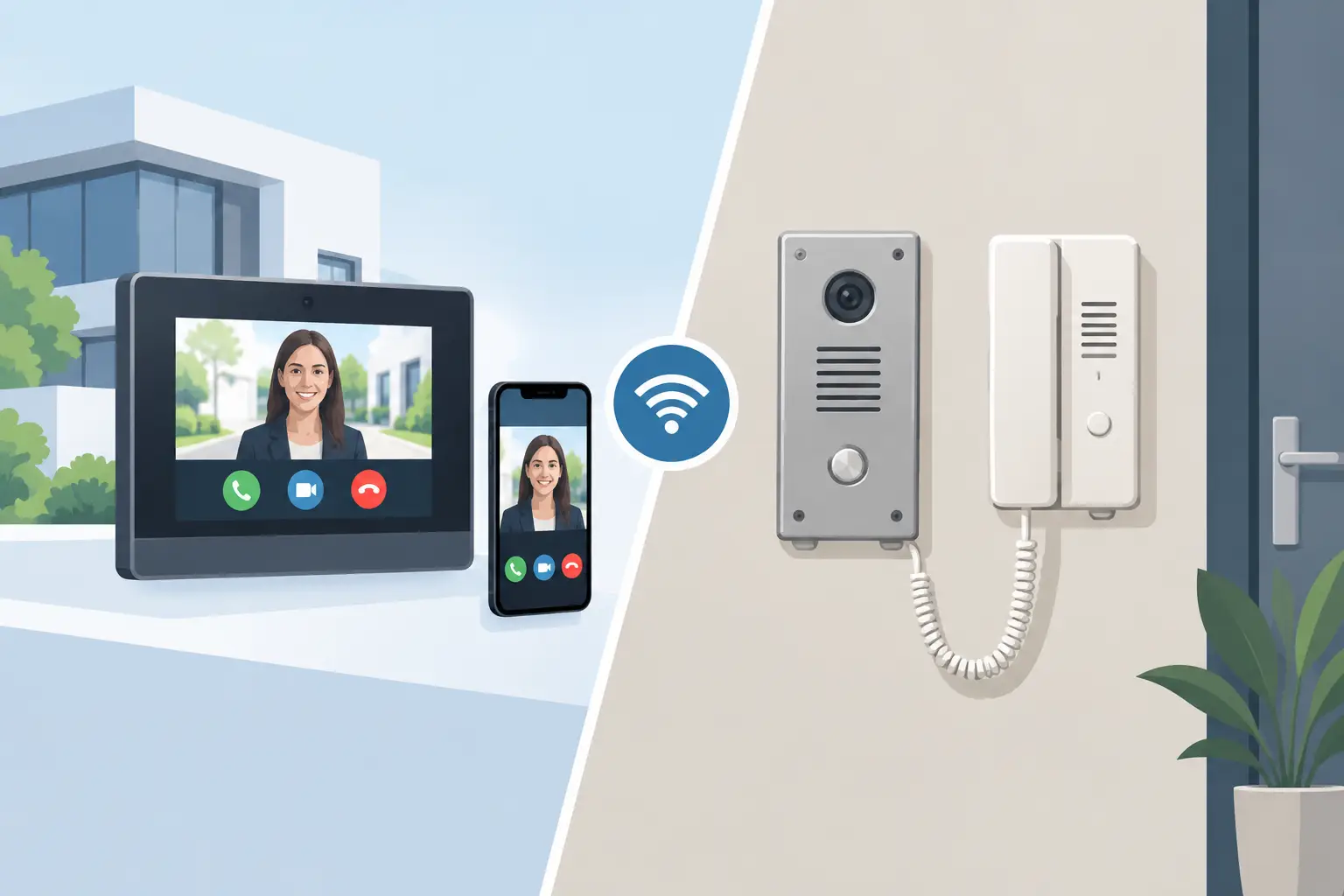
IP Intercom vs Analogue Intercom: Which Fits?
Compare IP intercom vs analogue intercom systems for homes, flats and businesses. Understand wiring, remote access, costs and the right fit for your site.

8 Best Ways to Deter Trespassers at Home
Learn the best ways to deter trespassers with practical CCTV, lighting, access control and boundary advice for homes and businesses across the UK today.

Best CCTV Camera Locations Around a House
Find the best CCTV camera locations around a house for stronger deterrence, clearer footage and practical coverage that protects key entry points.

Card Access Versus Mobile Access: Which Fits?
Compare card access versus mobile access for homes, flats and offices. See the security, cost and management factors shaping the right choice for all.
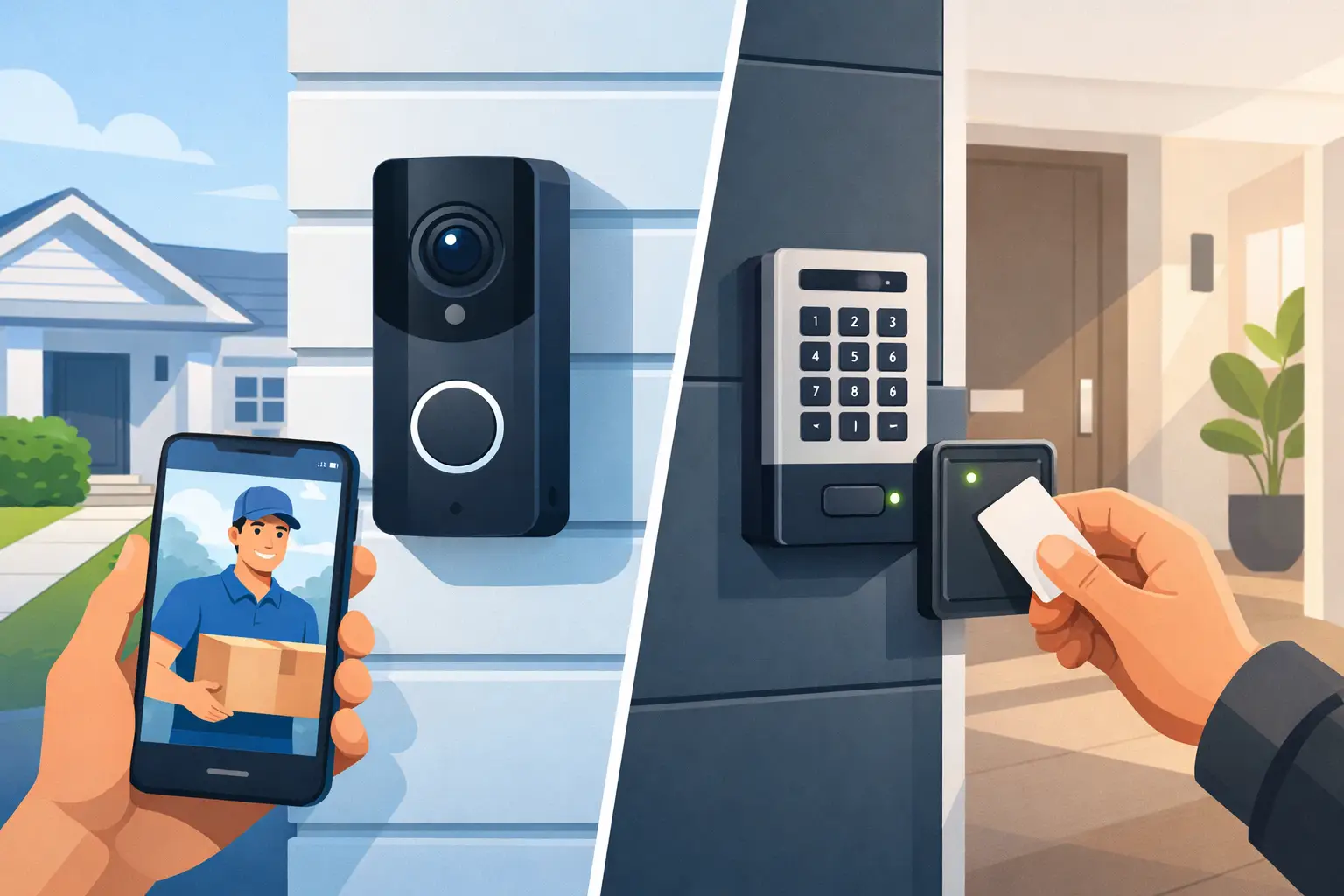
Video Doorbell vs Door Entry for Your Property
Compare video doorbell vs door entry systems for homes, flats and businesses. Choose practical access control, reliable visibility and support that lasts.

Cloud vs NVR CCTV Storage: Which Fits?
Compare cloud vs nvr cctv storage for homes and businesses. Learn the real trade-offs on cost, access, reliability and control.

What CCTV Cameras Need Internet?
What CCTV cameras need internet? Learn which systems work offline, when internet helps, and how to choose the right setup for home or business.